
Amazon CloudWatch Unified Datastore
Integrate Query Federation with Amazon CloudWatch Unified Datastore (UDS).
Overview
Amazon CloudWatch Unified Datastore is an AWS Cloud service that utilizes S3 Table Buckets and other AWS sources to facilitate the easy centralization, data normalization, and analysis of security and operations data available via CloudWatch such as service specific logs, traces, metrics, and otherwise. CloudWatch Unified Datastore supports OCSF, OTEL, and raw formats out of the box as well as Apache Iceberg Open Table Format via S3 Table Buckets to facilitate high performance analytics at scale.
Query's entire data model is built around the Open Cybersecurity Schema Framework (OCSF) - named the Query Data Model (QDM) - which expresses all search intents with OCSF/QDM concepts such as Entities/Observables used to represent facts and indicators whereas Event Classes represent things that have happened and are normalized against network, application, file system, identity, and 1st party security findings. When interacting with CloudWatch Unified Datastore, you will map the data to our OCSF schema regardless if the data is already in OCSF, or in OTEL or another raw format.
Query uses Role-based assumption to use Amazon Athena to interface with CloudWatch Unified Datastore by querying the underlying S3 Table Bucket namespaces and tables, this allows us to use SQL to query your data and take advantage of advanced capabilities within Apache Iceberg to facilitate creating detections, visualizations, ad-hoc search, and/or AI-enabled automatic investigations. All you need to do is select what CloudWatch Logs move through to the S3 Integration so we can reach them - such as Amazon EKS, AWS WAFv2, API Gateway, AWS Lambda, and other assorted logs.
Some details on searchesAs this integration uses Amazon Athena, you must have the S3 Tables Integration enabled, as detailed here.
S3 Table Buckets and Athena use multi-layered IAM primitives such as LakeFormation ABAC, Resource-based policies for S3 Table Buckets, IAM permissions for Athena, and AWS KMS if you use CMKs. You must ensure you have granted your IAM Role that will use Athena the ability to access these services via these identity surfaces.
Prerequisites
To connect a CloudWatch Unified Datastore S3 Table Bucket with Query Federated Search you'll need to
-
Enable the S3 Tables integration and identify your bucket and table data, as detailed here. Once you have onboarded your data sources, navigating to the CloudWatch Console -> Log Management -> Data Sources tab you can retrieve the Source Name and Source tab as shown below (FIG. 1) which will be needed to onboard your data sources.
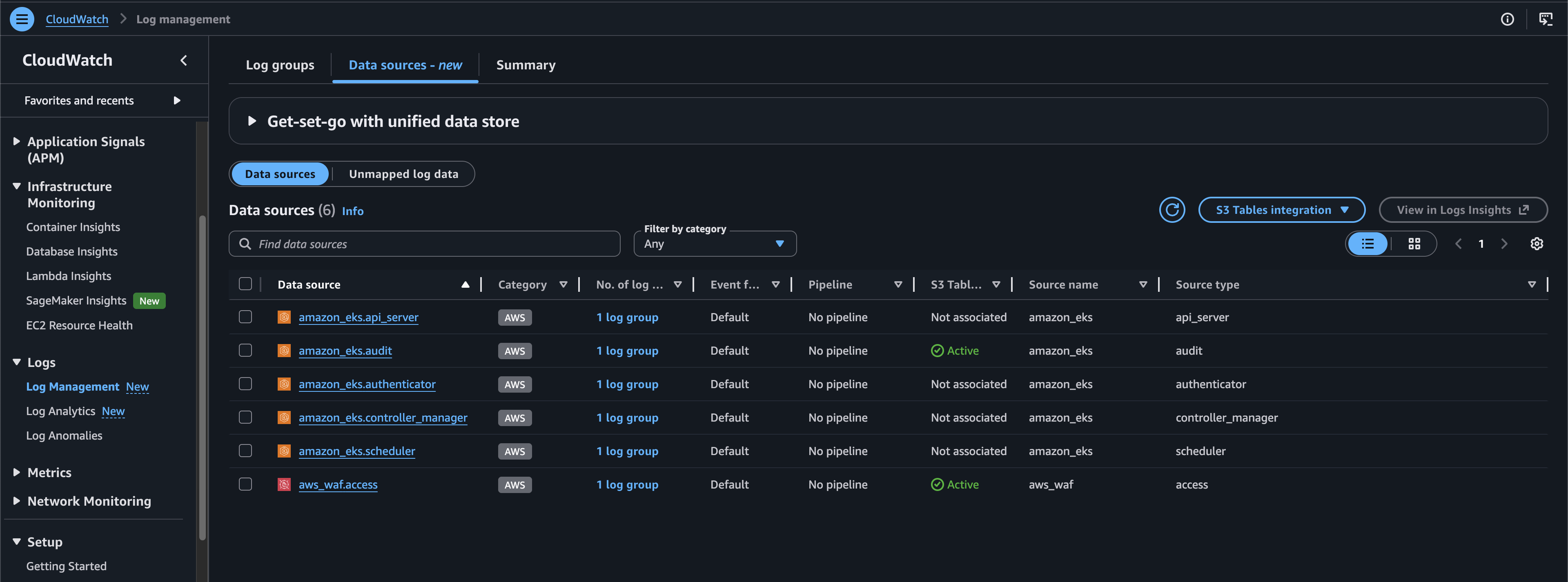
FIG. 1 - Locating Data source name and type in CloudWatch
-
Integrate S3 Table Buckets with AWS Analytics Services, specifically Amazon Athena, as detailed here.
-
Create an AWS IAM Policy similar to the following snippet, ensure you scope down your resources, this policy is NOT production grade
{
    "Version": "2012-10-17",
    "Statement": [
        {
            "Sid": "athenaPermissions",
            "Effect": "Allow",
            "Action": [
                "athena:BatchGetQueryExecution",
                "athena:GetDataCatalog",
                "athena:GetQueryExecution",
                "athena:GetQueryResults",
                "athena:GetQueryRuntimeStatistics",
                "athena:GetWorkGroup",
                "athena:ListQueryExecutions",
                "athena:ListWorkGroups",
                "athena:ListDataCatalogs",
                "athena:ListDatabases",
                "athena:StartQueryExecution",
                "lakeformation:GetDataAccess",
                "lakeformation:StartTransaction",
                "lakeformation:CommitTransaction",
                "lakeformation:CancelTransaction",
                "lakeformation:ExtendTransaction",
                "lakeformation:GetTableObjects",
                "sts:TagSession",
                "athena:StartQueryExecution",
                "athena:StopQueryExecution",
                "athena:GetQueryExecution",
                "athena:GetQueryResults",
                "athena:GetWorkGroup",
                "athena:ListQueryExecutions",
                "athena:ListWorkGroups",
                "athena:GetQueryRuntimeStatistics",
                "athena:BatchGetQueryExecution",
                "lakeformation:GetDataAccess"
            ],
            "Resource": [
                "*"
            ]
        },
        {
            "Sid": "gluePermissions",
            "Effect": "Allow",
            "Action": [
                "glue:GetTable",
                "glue:GetCatalogImportStatus",
                "glue:GetData*",
                "glue:GetPartitions",
                "glue:GetDatabase",
                "glue:GetDatabases"
            ],
            "Resource": [
                "arn:aws:glue:*:123456789101:catalog",
                "arn:aws:glue:*:123456789101:database/*",
                "arn:aws:glue:*:123456789101:table/*"
            ]
        },
        {
            "Sid": "athenaResultsAndTargetS3Read",
            "Effect": "Allow",
            "Action": [
                "s3:GetObjectAcl",
                "s3:GetObject",
                "s3:ListBucket",
                "s3:GetBucketAcl",
                "s3:GetBucketLocation"
            ],
            "Resource": [
                "*"
            ]
        },
        {
            "Sid": "athenaResultsS3Write",
            "Effect": "Allow",
            "Action": [
                "s3:PutObject*",
                "s3:DeleteObject"
            ],
            "Resource": [
                "*"
            ]
        },
        {
            "Sid": "s3TablesPermissions",
            "Effect": "Allow",
            "Action": [
                "s3tables:GetTable",
                "s3tables:ListTables",
                "s3tables:GetNamespace",
                "s3tables:ListNamespaces",
                "s3tables:GetTableBucket",
                "s3tables:ListTableBuckets"
            ],
            "Resource": [
                "*"
            ]
        },
        {
            "Sid": "s3tablesPermissions",
            "Effect": "Allow",
            "Action": [
                "s3tables:GetTable",
                "s3tables:GetTableData",
                "s3tables:GetNamespace",
                "s3tables:ListTables",
                "s3tables:ListNamespaces",
                "s3tables:ListTableBuckets",
                "s3tables:GetTableBucket",
                "s3tables:GetTablePolicy",
                "s3tables:GetTableBucketPolicy",
                "s3tables:GetTableMetadataLocation"
            ],
            "Resource": "*"
        },
        {
            "Sid": "lakeformationIcebergTransactions",
            "Effect": "Allow",
            "Action": [
                "lakeformation:StartTransaction",
                "lakeformation:CommitTransaction",
                "lakeformation:CancelTransaction",
                "lakeformation:ExtendTransaction",
                "lakeformation:GetTableObjects",
                "lakeformation:GetQueryState",
                "lakeformation:GetQueryStatistics",
                "lakeformation:GetWorkUnits",
                "lakeformation:GetWorkUnitResults",
                "lakeformation:StartQueryPlanning"
            ],
            "Resource": "*"
        }
    ]
}- Create an AWS IAM Role that uses this IAM Policy with the following placeholder trust policy. When you create a Connector, the External ID is automatically regenerated which will require an update.
{
  "Version": "2012-10-17",
  "Statement": [
    {
      "Action": "sts:AssumeRole",
      "Effect": "Allow",
      "Condition": {
        "StringEquals": {
          "sts:ExternalId": "REPLACE_ME"
        }
      },
      "Principal": {
        "AWS": [
          "arn:aws:iam::822484525064:root"
        ]
      }
    }
  ]
}
To learn how to configure a CloudWatch Unified Datastore Connector, proceed to the next section.
Setting up the CloudWatch Unified Datastore Connector
Use the following steps to create a new Query Federated Search Connector for CloudWatch Unified Datastore.
-
Navigate to the Connectors page, select Add Connector, and select CloudWatch Unified Datastore from the
Cloud Infrastructure and Securitycategory as shown below (FIG. 2). You can also search for CloudWatch Unified Datastore using the search bar in the Add Connector page.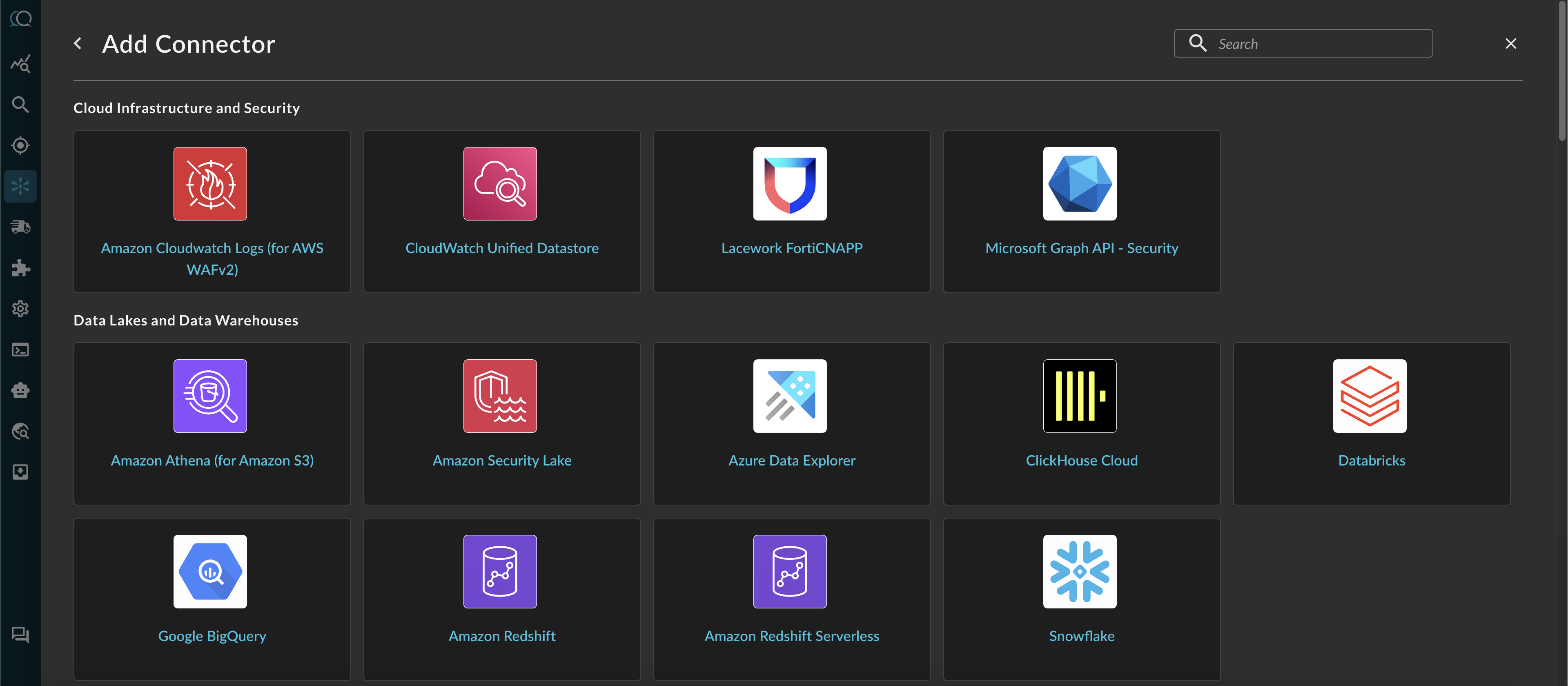
FIG. 2 - Integration Add Connector
-
In the Configure Connector tab, add the following detail as shown below (FIG. 3):
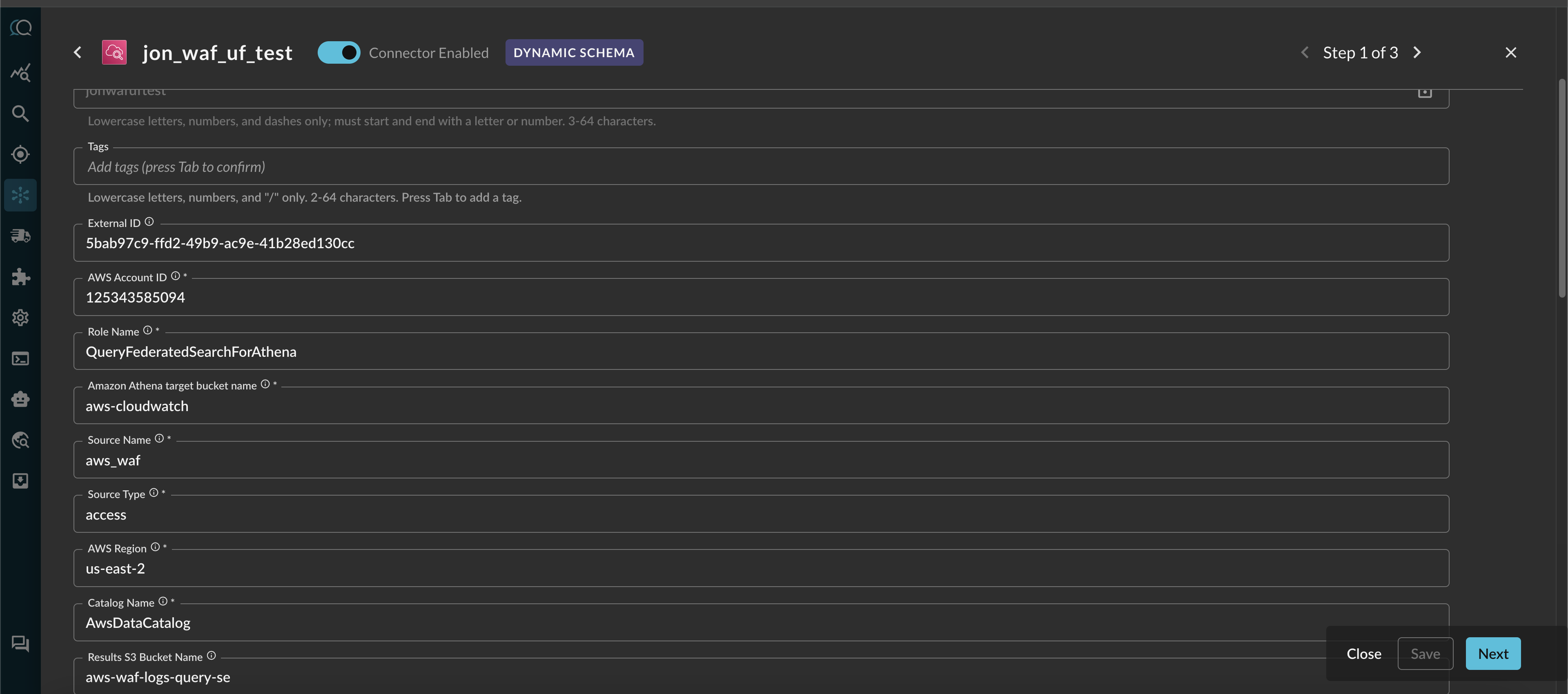
FIG. 3 - Configuring AWS CloudWatch Unified Datastore connectors
- Connector Name: The human-readable name you want to give to this connector, you can provide the name of a table, a dataset, or otherwise.
- Alias: This will default to Connector Name, if you want to have another internal naming convention for searching with FSQL, you can override Alias.
- Tags: Optional text-based tags for advanced filtering for searching and grouping.
- External ID: Read-only value, will update after successfully saving the Connector.
- AWS Account ID: The Account ID of your AWS Account that has your Athena and CloudWatch deployment.
- Role Name: Your AWS Role Name, remember to replace/add the External ID after creation.
- Amazon Athena target bucket name: The name of the actual S3 Table Bucket
- Source Name & Source Type: The Unified Datastore Name and Type of your integrated logs, copied in Step 1 of the Prerequisites section.
- AWS Region: The Region where Athena is located, if you centralize your logs from CloudWatch Unified Datastore, ensure you have Athena setup in that centralized region.
- Catalog Name: Keep the default value here.
- Results S3 Bucket Name: The S3 bucket where Athena sends results to. You can find this in Athena Settings.
-
Select Save to save and activate the Connector, ensure you take note of the External ID and add it to your IAM Role.
-
Select Test Connection from the bottom-right of the connection pane to ensure that your IAM Role is properly setup and we can reach your S3 Table Bucket. Errors during this stage can range from missing LakeFormation or IAM Permissions, Resource-based policies on the S3 Table Bucket, or from simply not waiting a few seconds for the IAM Role to propagate its changes.
-
Finally, proceed to the Preview Data section to begin the Configure Schema process. Refer to the hyperlink to learn how to use the Configure Schema no-code workflow, it is HIGHLY recommended for first time users.
You will now see CloudWatch Unified Datastore added as an available Connector within the Query platform.
Querying CloudWatch Unified Datastore Connectors
Within the Query Search UI, all Connectors are enabled by default. To check that your specified Connector(s) for CloudWatch Unified Datastore are enabled, navigate to the category_name section of the Selected Connectors dropdown and ensure that your specified CloudWatch Unified Datastore Connector(s) are are selected (denoted by a checkbox) before running your searches.
The Entities (Observables) and Events you will be able to search determine on how you mapped your data in Configure Schema against a given CloudWatch Unified Datastore Dataset. For more information about the QDM/OCSF schema itself refer to the About the Query Data Model section of the Query docs, you can also view the Categories, Events, and Objects themselves.
Troubleshooting Steps
- Ensure that you have created integrations from Unified Datastore to S3 Tables and S3 Tables to Amazon Athena
- Ensure that you have selected the correct AWS Account, Region, and that you have provided your IAM Role with LakeFormation Grants and/or S3 Table Bucket Policy access
- Ensure that you have used the right External ID in your IAM Role
- Ensure that there is data flowing into your S3 Table Buckets
- If you are using an AWS KMS CMK, you must add KMS permissions to your policy and specific the ID or ARN in the Connector of the KMS CMK ARN.
If you have exhausted the above Troubleshooting list, please contact your designated Query Sales Engineer or Customer Success Manager. If you are using a free tenant, please contact Query Customer Success via the Support email in the Help section, or via Intercom within your tenant.
Updated about 2 months ago